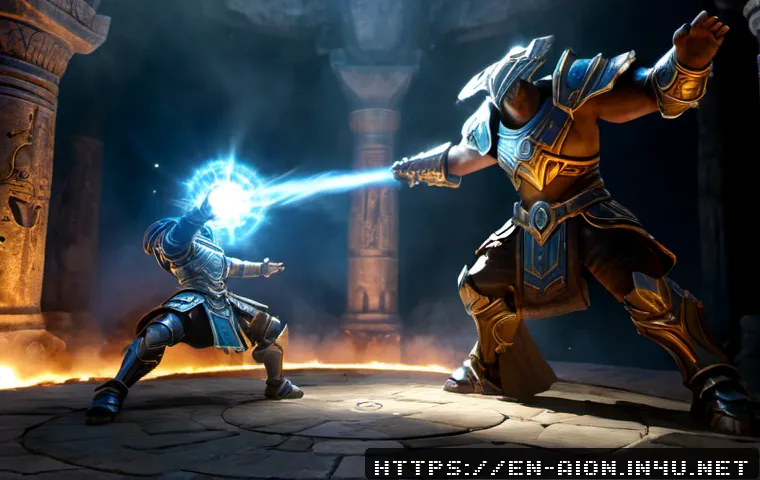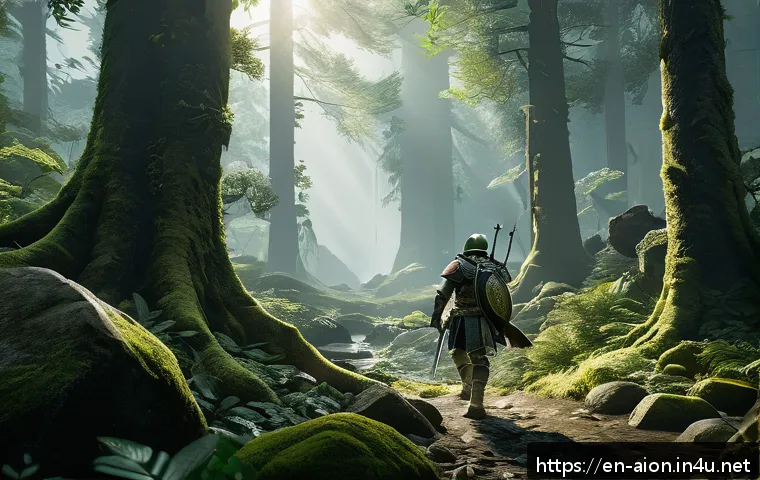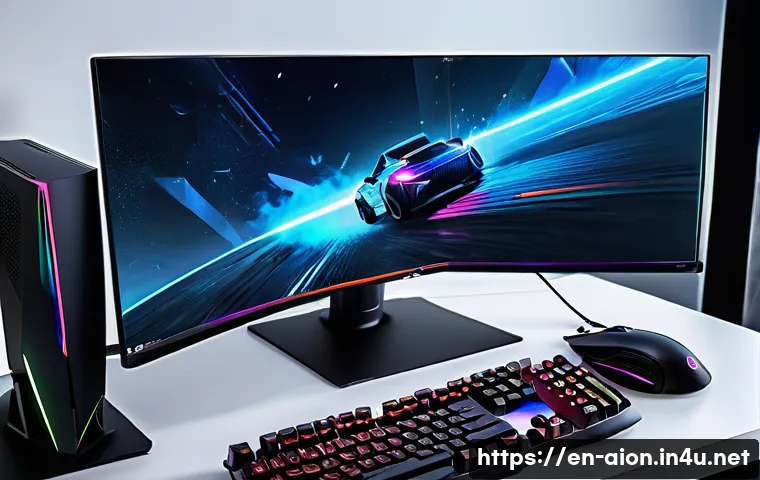
Playing Aion offers a stunning visual experience, but without the right settings, it can easily lead to lag or stuttering, ruining the immersion. Optimizing graphics options not only boosts your frame rate but also ensures smooth gameplay, especially during intense battles or crowded zones.
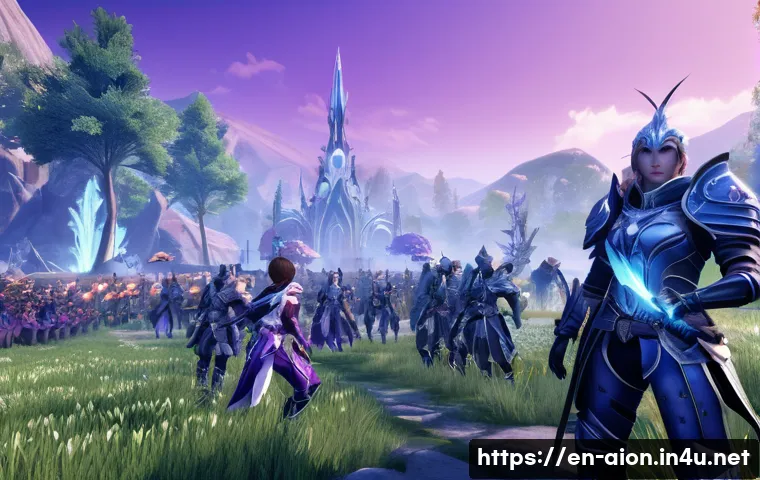
From adjusting texture quality to tweaking shadows and effects, the right balance can transform your gaming sessions. Whether you’re running the game on a high-end rig or a modest setup, fine-tuning these options is key to enjoying Aion at its best.
Let’s dive into the details and uncover how to make your gameplay both beautiful and seamless!
Balancing Visual Fidelity and Performance
Choosing the Right Resolution for Your Setup
Finding the sweet spot for resolution is essential when aiming for smooth gameplay in Aion. Higher resolutions like 1440p or 4K look stunning, but they also demand more from your GPU, which can cause frame drops if your hardware isn’t top-tier.
On the other hand, sticking to 1080p or even 900p can significantly improve frame rates on mid-range rigs, making your experience fluid without sacrificing too much visual clarity.
From personal experience, dialing down resolution slightly during crowded zones or massive PvP battles helped me avoid annoying stutters while still keeping the game visually appealing.
Experiment with your monitor’s native resolution first, then try stepping down a notch if performance dips during intense moments.
Texture Quality and Its Impact on Gameplay
Textures are what make the world of Aion feel alive, but ultra-high texture settings can eat up your VRAM quickly. If you have a graphics card with 4GB or more VRAM, you can comfortably push textures to high or very high.
However, if your system is closer to 2GB or less, medium or even low textures can prevent sudden frame rate drops. I found that setting textures to medium strikes a nice balance; the game still looks good, but loading times are faster and performance is steadier.
Texture quality also affects how detailed character models and environments appear, so it’s worth tweaking this setting based on your specific rig.
Shadow Settings: Finding the Middle Ground
Shadows can add a lot of depth and realism to Aion’s environments, but they’re also one of the biggest performance hogs. Turning shadows off completely can boost FPS dramatically, but the world feels flat and less immersive.
Medium shadow settings often provide a nice compromise, giving you some dynamic lighting without hammering your system. Personally, I noticed that in crowded areas or during boss fights, lowering shadows from high to medium helped keep gameplay smooth without losing the atmospheric vibe.
Shadows also affect visibility, so keep that in mind when adjusting them for PvP or grinding.
Optimizing Effects and Post-Processing
Managing Particle Effects for Clear Combat
Aion’s spell effects and particle animations are gorgeous but can clutter the screen and tank your performance, especially in large-scale battles. Reducing particle density or turning off excessive spell glows and sparkles can clear up the visual noise and improve your frame rate.
This is particularly useful during sieges or when a ton of players are casting spells simultaneously. I usually dial down particle effects just before large fights, then bump them back up when I’m exploring quieter zones.
This tweak not only helps with FPS but also makes it easier to track enemy movements and attacks.
Disabling or Tweaking Bloom and Motion Blur
Bloom and motion blur add cinematic flair but often cause unnecessary performance hits and can blur important visual cues. Turning off motion blur completely is my go-to because it sharpens the image, making fast movements and enemy actions easier to follow.
Bloom can be set to low or off depending on your preference; disabling it can slightly increase FPS and reduce eye strain during long sessions. These settings are often overlooked but can make a noticeable difference in both clarity and responsiveness.
Anti-Aliasing: Smoothing Edges Without Sacrificing Speed
Anti-aliasing helps smooth jagged edges, making the game look cleaner, but it’s also a resource-intensive feature. Options like FXAA are less demanding and provide decent smoothing, whereas MSAA offers higher quality but at a bigger performance cost.
On my setup, using FXAA gave a nice balance—edges looked smooth enough without dropping too many frames. If you have a powerful GPU, higher levels of MSAA can be enjoyable, but for most setups, lower-tier anti-aliasing or even turning it off in favor of better FPS is a smarter choice.
Adjusting Advanced Settings for Specific Hardware
Leveraging V-Sync and Frame Rate Caps
V-Sync can eliminate screen tearing, which is distracting in fast-paced games like Aion, but it may introduce input lag. If you’re playing competitively, turning V-Sync off and using a frame rate cap close to your monitor’s refresh rate can reduce lag while keeping the visuals smooth.
For casual play, enabling V-Sync might be worth the trade-off. I recommend testing both options to see which feels more responsive and visually pleasing to you.
Frame rate caps can also help stabilize performance, especially on older hardware.
Using DirectX Versions to Maximize Compatibility
Aion offers the option to switch between DirectX 9 and DirectX 11, which can impact performance and visual quality. DirectX 11 generally provides better graphics and effects, but some older systems or drivers might run more smoothly on DirectX 9.
I noticed that on my mid-range PC, DirectX 11 gave richer visuals but occasionally dropped frames during large battles, while DirectX 9 was more consistent.
It’s worth trying both to find what works best for your configuration.
Customizing the Field of View (FOV)
Increasing the FOV can give you a wider view of the battlefield, which is great for awareness but may reduce FPS slightly. On my setup, setting the FOV to around 90 degrees provided a comfortable balance, expanding peripheral vision without causing noticeable performance drops.
A wider FOV can be particularly helpful in PvP or when exploring large areas, but if you experience lag, dialing it back a bit can smooth things out.
Understanding the Role of Hardware Components
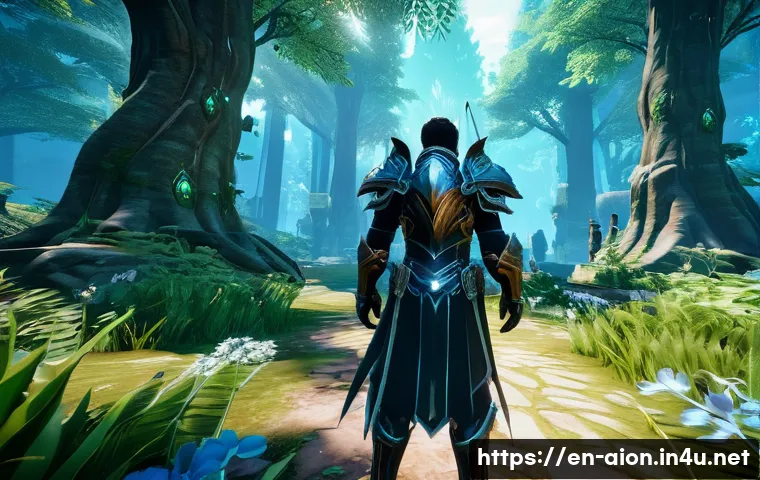
CPU vs. GPU: Which Matters More in Aion?
Aion is a game that benefits from a strong GPU, as most graphical settings directly tax the graphics card. However, the CPU plays a crucial role in handling AI, physics, and player interactions, especially in crowded zones.
From my experience, upgrading the GPU yields the most noticeable boost in visual performance and FPS, but don’t neglect the CPU—if it’s bottlenecking, you’ll still see stutters.
Balancing both components is key, and knowing where your system’s weaknesses lie helps you prioritize upgrades.
RAM and Its Effect on Game Stability
Having enough RAM is essential to prevent crashes and ensure smooth loading of textures and assets. Aion recommends at least 8GB, but 16GB or more can make a difference during heavy gameplay sessions.
I’ve noticed that when my RAM usage hits its limit, the game starts to lag and stutter, especially when moving between zones or during big battles. Closing background applications and ensuring your system has ample memory available can greatly improve stability.
Storage Type: SSD vs. HDD Load Times
Running Aion on an SSD versus an HDD drastically cuts down load times and reduces texture pop-in. I switched to an SSD a while back, and the difference was night and day—loading into zones is nearly instantaneous, and textures appear smoothly without noticeable delays.
If you’re still on an HDD, consider upgrading your storage for a smoother, more immersive experience.
Practical Graphics Settings Cheat Sheet
| Setting | Recommended Option | Effect on Performance | Visual Impact |
|---|---|---|---|
| Resolution | 1080p or native monitor resolution | Medium to High | Clear visuals with smooth gameplay |
| Texture Quality | Medium | Moderate | Good detail without VRAM strain |
| Shadow Quality | Medium | High | Balanced lighting and performance |
| Particle Effects | Low to Medium | High | Clearer combat visuals |
| Anti-Aliasing | FXAA or Off | Low to Medium | Smooth edges with better FPS |
| Motion Blur | Off | Low | Sharper visuals and less input lag |
| V-Sync | Off or Frame Rate Cap | Variable | Reduced screen tearing or input lag |
| DirectX Version | DX11 or DX9 (based on hardware) | Variable | Better effects or smoother gameplay |
Tips for Maintaining Performance Over Time
Keeping Drivers and Game Updates Current
Regularly updating your GPU drivers and Aion itself ensures you benefit from the latest performance optimizations and bug fixes. I’ve had situations where outdated drivers caused crashes or poor FPS, which were resolved after a quick update.
Make it a habit to check for new versions at least once a month or whenever you encounter issues.
Cleaning Up System Resources
Background applications can silently eat up CPU, RAM, and disk usage, impacting your gaming experience. Before launching Aion, close unnecessary programs like browsers, chat apps, and streaming software.
On my PC, this simple step boosted frame rates noticeably and reduced stuttering during hectic gameplay.
Using In-Game Performance Monitoring Tools
Aion includes tools to monitor FPS and other metrics in real-time. Keeping an eye on these stats helps you identify which settings cause dips during gameplay.
I often tweak graphics while watching FPS counter, fine-tuning the balance between quality and smoothness based on live feedback rather than guesswork.
This approach saves time and frustration, making your gaming sessions more enjoyable.
Closing Thoughts
Finding the right balance between visual quality and performance in Aion can greatly enhance your gaming experience. Through careful tweaking of settings like resolution, textures, and effects, you can enjoy smooth gameplay without sacrificing too much detail. Remember, every system is unique, so don’t hesitate to experiment until you discover what works best for you. Ultimately, optimizing your setup will keep your adventures in Aion both beautiful and fluid.
Useful Tips to Remember
1. Always start with your monitor’s native resolution and adjust downwards if performance drops during intense moments.
2. Set texture quality to medium for a good balance between visual detail and stable frame rates, especially if your VRAM is limited.
3. Lower shadow settings to medium in crowded or boss fight scenarios to maintain smooth gameplay without losing atmospheric depth.
4. Disable motion blur and reduce particle effects in large battles to improve clarity and FPS, helping you track enemies better.
5. Keep your GPU drivers and the game updated regularly to benefit from ongoing performance improvements and bug fixes.
Key Takeaways for Optimal Gameplay
Balancing graphics settings in Aion involves prioritizing what matters most: smooth performance and clear visuals. Upgrading hardware, especially your GPU and RAM, can significantly boost your experience, but smart in-game adjustments also play a crucial role. Monitor your FPS actively to identify trouble spots, and don’t be afraid to lower demanding settings like shadows or particle effects during heavy combat. By maintaining your system and tailoring settings to your specific rig, you’ll enjoy a stable, immersive journey through Aion’s vibrant world.
Frequently Asked Questions (FAQ) 📖
Q: How can I reduce lag and stuttering in
A: ion without sacrificing too much visual quality? A1: From my experience, the key is to find a sweet spot by lowering texture quality and turning down shadow details while keeping effects like particle animations moderate.
This approach keeps the game visually appealing but less demanding on your GPU, especially during crowded battles. Also, enabling V-Sync or frame rate caps can prevent sudden frame drops that cause stuttering.
Tweaking these settings gradually and testing in-game really helps you strike that balance.
Q: Is it better to prioritize frame rate or graphics quality for a smoother
A: ion experience? A2: Personally, I’ve found that prioritizing frame rate over ultra-high graphics yields a much smoother and more enjoyable gameplay, particularly in PvP or large-scale raids where every millisecond counts.
High frame rates reduce input lag and improve reaction times. However, you don’t have to go full low settings—medium or balanced presets often provide decent visuals without the performance hits, making your gaming experience both beautiful and fluid.
Q: What are the best settings for playing
A: ion on a mid-range PC? A3: On a mid-range setup, I recommend setting textures to medium, shadows to low or medium, and disabling any unnecessary post-processing effects like motion blur or depth of field.
Also, turning off ambient occlusion can boost performance significantly. Don’t forget to update your graphics drivers and close background apps to free up resources.
This setup maintains good visuals while keeping frame rates stable, ensuring smooth gameplay during intense moments.