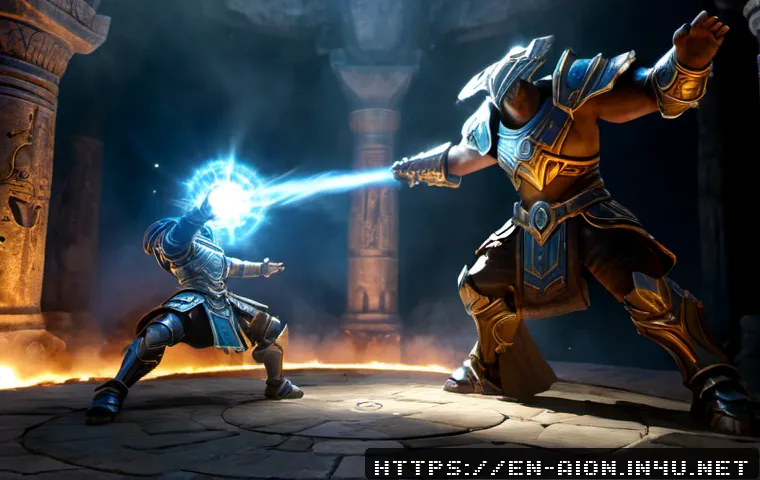
Mastering combat mode settings in Aion can dramatically transform your gameplay experience. Whether you’re a seasoned player or just starting out, understanding how to optimize these settings is crucial for both PvP and PvE battles.
The right configuration not only boosts your efficiency but also enhances your reaction time during intense fights. I’ve spent countless hours tweaking these options and noticed a significant difference in my performance.
If you want to gain that competitive edge and truly enjoy the depth of Aion’s combat system, you’re in the right place. Let’s dive in and explore the details together!
Customizing Targeting Priorities for Maximum Efficiency
Understanding Target Selection Settings
When you first dive into Aion’s combat settings, one of the most impactful adjustments is how your game prioritizes targets. By default, the system may lock onto enemies based on proximity or threat, but this isn’t always ideal, especially in hectic PvP situations where split-second decisions matter.
I found that tweaking the targeting priority to focus on player characters over NPCs made my engagements more meaningful and rewarding. It reduces the chance of wasting precious cooldowns on minions or mobs when the real threat is a player trying to take you down.
Adjusting these settings lets you stay locked on the highest priority targets, which ultimately keeps your DPS and survivability high.
How to Set Target Filters and Auto-Targeting
Target filters are a game-changer, allowing you to exclude certain enemy types or ranks from your auto-targeting sequence. For example, if you’re in a group raid, you can filter out low-level mobs that don’t require your attention, so your abilities automatically focus on bosses or elite enemies.
I personally use a mix of manual and auto-targeting depending on the scenario; manual targeting in PvP to maintain control, and auto-targeting in PvE to streamline my rotation.
The key is to experiment with the filter thresholds and practice switching targets efficiently, which can drastically cut down on wasted time and missed attacks.
Balancing Auto-Attack and Skill Activation
Auto-attack settings can either be a boon or a bane, depending on how you configure them. If you set auto-attack to trigger immediately upon target acquisition, you might find yourself unintentionally pulling multiple mobs or attacking at the wrong moment.
On the flip side, turning it off entirely means you need to be extra vigilant to initiate combat manually. I recommend setting auto-attack to a delayed mode or toggling it off during PvP, where timing and positioning are everything.
It’s a subtle change, but it helped me avoid accidental agro and positioned me better during fights.
Optimizing Skill Activation and Cooldown Management
Prioritizing Skills for Seamless Combos
One thing I learned after countless hours in Aion is how crucial it is to arrange your skill activation order to maximize damage and utility. Combat mode settings allow you to customize which skills get triggered first or chained together.
For instance, setting your crowd control skills to activate before heavy damage spells can give you a tactical advantage by locking down enemies before unleashing your full damage potential.
I experimented with various skill priority lists, and the difference in my kill speed and survivability was night and day. The smoother your skill combos flow, the less downtime you experience, which is vital in fast-paced battles.
Cooldown Management Features
Combat mode also includes cooldown tracking options that can notify you when key abilities are ready again. I can’t stress enough how helpful this is, especially for classes relying on burst damage or defensive cooldowns.
Instead of constantly glancing at your skill bar, these alerts free up mental bandwidth to focus on positioning and strategy. You can customize cooldown alerts for specific skills that are critical to your build.
Over time, I noticed my reaction time improved dramatically because I wasn’t scrambling to remember when my abilities were available.
Utilizing Smart Skill Casting
Smart skill casting automates certain actions based on combat context, such as casting heals when your health dips below a threshold or using buffs right before engaging enemies.
While I initially hesitated to rely on automation, carefully configuring smart casting improved my overall gameplay flow. It’s like having a safety net during hectic moments when you might miss a crucial heal or buff.
However, balance is key — too much automation can make your play feel robotic and less engaging, so I fine-tuned these settings to complement my playstyle rather than replace it.
Managing Camera and Movement Settings for Better Control
Adjusting Camera Angles During Combat
Camera control is often overlooked, but it’s essential for spatial awareness in Aion’s combat. By tweaking camera sensitivity and auto-rotation settings, you can maintain better visibility of your surroundings without manually adjusting the view constantly.
I found that setting a moderate auto-rotate speed allowed me to track enemies behind me or in blind spots during intense fights. This was especially helpful in PvP, where situational awareness can mean the difference between life and death.
Experimenting with camera presets helped me find a balance that reduced neck strain while keeping me alert.
Fine-Tuning Movement Behavior
Movement settings impact how responsive your character feels during combat. Whether you prefer tank-like, deliberate movement or nimble, quick dodges, adjusting parameters like auto-run, strafing, and turning speed can align the game with your natural reflexes.
I customized my movement to be more fluid, enabling quick side-steps to avoid AoE attacks while maintaining offensive pressure. Another trick I picked up was using toggle options for running and walking, which helped conserve stamina during long fights without sacrificing mobility when it mattered.
Integrating Camera and Movement for Smooth Combat
The real magic happens when camera and movement settings work in harmony. I practiced synchronizing my camera adjustments with my movement inputs to create seamless transitions between offense and defense.
For example, quickly spinning the camera while sidestepping around an enemy gave me a perfect angle for counterattacks. This synergy also reduces the mental load of managing multiple controls simultaneously.
If you invest time in mastering this coordination, your combat feels more natural, and you react faster to unpredictable situations.
Custom Keybindings and Hotkey Setup
Mapping Skills to Comfortable Keys
One of the first things I changed was my default keybindings. The standard layout wasn’t optimized for my hand positioning, causing frequent misfires or delayed responses.
By customizing hotkeys to positions that felt more intuitive and reachable, I noticed a significant boost in my action speed. For example, placing frequently used skills on keys near my movement controls made it easier to chain combos without breaking focus.
Don’t hesitate to experiment — it’s worth investing time here because muscle memory develops quickly once you find the right layout.
Using Modifier Keys and Macros
Modifier keys like Shift, Ctrl, and Alt can expand your hotkey options exponentially. I combined these with macros to execute complex skill sequences or switch between combat stances instantly.
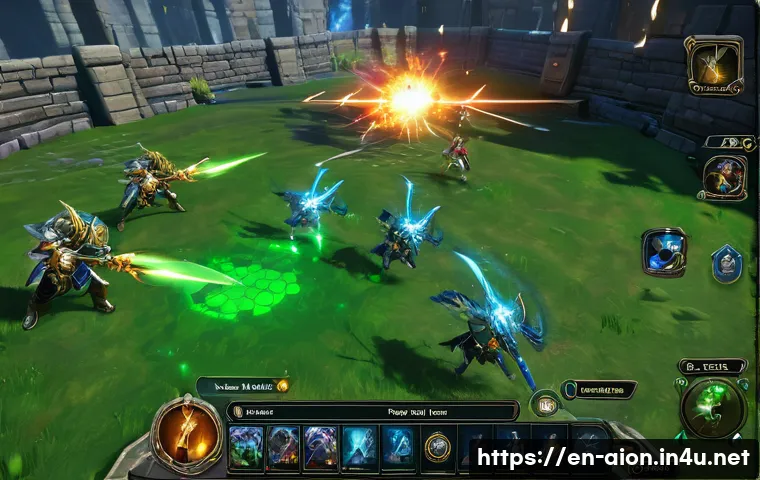
This setup reduced the number of manual inputs required during combat, allowing me to concentrate on strategy rather than button mashing. Just be cautious not to overload your keybindings — too many macros can lead to confusion, especially in high-stress moments.
I keep my macros simple and focused on enhancing my core rotation.
Testing and Adjusting Hotkeys in Combat
After setting your hotkeys, it’s crucial to test them in real combat scenarios rather than just practice mode. I found that some bindings that felt perfect while standing still became awkward once I started dodging and moving rapidly.
Repeated testing helped me identify which keys were easy to hit under pressure and which needed reassignment. Don’t be afraid to revisit your setup regularly, especially after level-ups or skill changes, to maintain peak efficiency.
Leveraging UI Customization for Combat Clarity
Optimizing Skill Bars and Cooldown Displays
Having a clutter-free and informative UI makes a huge difference in combat awareness. I rearranged my skill bars to prioritize essential abilities in the center of my screen, making them easy to glance at during hectic fights.
Additionally, adjusting cooldown timers to be larger and more visible helped me track ability readiness without diverting my eyes from the action. This customization reduced my reaction lag and helped me avoid missing critical skill windows.
Configuring Buff and Debuff Indicators
Keeping an eye on buffs and debuffs can sometimes feel overwhelming, especially in group content where multiple effects stack simultaneously. I personalized my UI to display only the most relevant status effects prominently, hiding less impactful ones in secondary areas.
This way, I could quickly assess my condition and react accordingly. For example, seeing a debuff like “silence” flash immediately alerted me to switch to defensive play or use a cleanse ability.
Using Combat Logs and Damage Meters
Combat logs and damage meters are excellent tools for analyzing your performance post-fight. While they don’t affect real-time combat directly, reviewing them helped me identify weak points in my rotation or moments where I could improve positioning.
Some UI mods offer real-time feedback during battles, which is incredibly useful for adjusting tactics on the fly. Incorporating these tools into your routine can accelerate your learning curve and refine your combat approach.
Understanding Defensive Settings and Survival Tactics
Configuring Auto-Heal and Shield Usage
Surviving tough encounters often depends on how well you manage your defensive cooldowns and heals. The combat mode allows you to set automatic triggers for potions, shields, or healing skills when your health drops below a certain threshold.
I experimented with different trigger points to avoid wasting resources prematurely while ensuring I didn’t die due to delayed responses. This setup felt like having a safety net, especially during chaotic battles where manual healing might be missed.
Setting Up Threat Management Preferences
Threat management settings help you control enemy aggression, which is vital for tank classes or those playing support roles. By adjusting aggro thresholds and threat generation priorities, you can better protect your party members or avoid drawing unnecessary attention.
I learned that fine-tuning these settings allowed me to hold enemy focus longer, giving my teammates the freedom to deal damage or heal without interruption.
It’s a subtle but essential aspect of team-based combat.
Emergency Escape Options and Movement Aids
Sometimes, the best defense is a quick getaway. Combat mode settings include options for instant disengage skills or movement boosts activated under critical conditions.
I configured these to activate when my health dipped dangerously low, giving me a chance to reposition or retreat safely. In several close PvP matches, these escape tools turned the tide by buying me precious seconds to recover or call for backup.
Incorporating such survival tactics into your setup is a smart way to extend your longevity in battle.
Comparison of Key Combat Mode Settings and Their Effects
| Setting | Effect on Gameplay | Recommended Use Case |
|---|---|---|
| Target Priority Adjustment | Focuses attacks on high-threat targets, improving damage output and control | PvP battles and high-level PvE raids |
| Auto-Attack Delay | Prevents accidental pulls and allows precise timing of attacks | PvP and boss fights requiring controlled engagement |
| Cooldown Alerts | Improves reaction time by notifying when skills are ready | All combat scenarios, especially burst damage classes |
| Camera Auto-Rotation | Enhances spatial awareness without constant manual adjustments | PvP and crowded PvE environments |
| Custom Hotkeys with Modifiers | Increases action speed and enables complex skill combos | Advanced players focusing on efficient rotations |
| Auto-Heal Trigger | Automates healing to prevent untimely deaths | Solo play and situations with high incoming damage |
| Threat Management Settings | Controls enemy aggression to protect allies | Tank roles and coordinated group play |
| Smart Skill Casting | Automates buffs/heals for smoother gameplay | Players wanting assistance during hectic fights |
In Conclusion
Mastering combat settings in Aion transforms your gameplay from average to exceptional. By customizing targeting, skill activation, camera controls, and keybindings, you gain the edge needed for both PvP and PvE. These tweaks not only boost your efficiency but also make battles more engaging and intuitive. Take the time to experiment and refine your setup — it truly pays off in performance and enjoyment.
Useful Tips to Keep in Mind
1. Prioritize player targets over NPCs to maximize your impact during intense PvP encounters and avoid wasting cooldowns.
2. Use a combination of manual and auto-targeting based on the situation to maintain control without sacrificing speed.
3. Customize your camera and movement settings together to improve spatial awareness and fluidity during combat.
4. Regularly test and adjust your keybindings in real fights to ensure they are comfortable and responsive under pressure.
5. Leverage cooldown alerts and smart skill casting to reduce mental load and react faster in chaotic moments.
Key Takeaways for Effective Combat Settings
Optimizing combat settings is essential for maintaining high performance and survivability. Focus on refining your target priorities to engage the most threatening enemies first, and balance auto-attack timing to avoid accidental pulls. Custom hotkeys with modifiers streamline complex skill combos, while camera and movement synchronization enhance your situational awareness. Don’t overlook defensive configurations like auto-heal triggers and threat management, as they are critical for enduring tough battles. Ultimately, regularly revisiting and tailoring these settings ensures your gameplay remains sharp, responsive, and enjoyable.
Frequently Asked Questions (FAQ) 📖
Q: How do I customize combat mode settings to improve my reaction time in
A: ion? A1: To sharpen your reaction time, start by adjusting the skill activation methods and cooldown displays in the combat settings. I found that enabling instant cast for certain skills and turning on cooldown timers right next to your skill bar really helped me anticipate my next move faster.
Also, tweaking your camera angle and target lock options can make a huge difference, especially in chaotic PvP scenarios where every millisecond counts.
Experiment with these until you find a setup that feels intuitive—trust me, it’s worth the time.
Q: What are the best combat mode settings for PvP versus PvE in
A: ion? A2: PvP and PvE require slightly different approaches. For PvP, I recommend prioritizing settings that enhance target awareness and quick skill usage, like enabling enemy nameplates and using the focus target feature aggressively.
This helps you keep track of multiple opponents and react swiftly. On the other hand, PvE benefits from settings that streamline skill rotations and reduce visual clutter, so turning off unnecessary combat text and focusing on buffs and debuffs can improve your efficiency.
From my experience, switching profiles or presets depending on what you’re doing saves a lot of hassle.
Q: Can mastering combat mode settings really make a noticeable difference in gameplay performance?
A: Absolutely. When I first started tweaking my combat mode settings, I didn’t expect a huge change, but after fine-tuning things like skill hotkeys, camera behavior, and targeting options, my overall performance skyrocketed.
I found myself dodging attacks more effectively and executing combos faster than before. It’s like unlocking a new level of control over your character.
Whether you’re grinding dungeons or dueling other players, those little adjustments can turn close calls into wins. So yes, mastering these settings is definitely a game-changer.